

Clerk
This page describes how to protect Clerk Frontend API using Cloudflare worker
Prerequisites
- Admin access to an application in Clerk
- DataDome Cloudflare Worker module installed
- a DataDome custom rule to allow traffic on
/v1/proxy-health*
Setup
Cloudflare Worker code
Edit the Cloudflare worker as defined in Proxying the Clerk Frontend API
The code once merged with DataDome worker is as below:
[...]
export default {
    async fetch(request: Request, env: Env, ctx: ExecutionContext): Promise<Response> {
        const url = request.url.replace(env.CLERK_PROXY_URL, env.CLERK_FAPI);
        const proxyReq = new Request(url, {
            method: request.method,
            headers: request.headers,
            body: request.body,
            redirect: 'manual',
        });

        proxyReq.headers.set('Clerk-Proxy-Url', env.CLERK_PROXY_URL);
        proxyReq.headers.set('Clerk-Secret-Key', env.CLERK_SECRET_KEY);
        proxyReq.headers.set('X-Forwarded-For', request.headers.get('CF-Connecting-IP') || '');

        const handler: ExportedHandler<Env> = activateDataDome();
        if (handler.fetch) {
            return handler.fetch(proxyReq as CfRequest, env, ctx);
        }
        return new Response('Handler not available', { status: 500 });
    },
} satisfies ExportedHandler<Env>;
Note the
proxyReqinstantiation, it is mandatory to do it explicitly as shown above as the edited url is needed by the DataDome module.
Cloudflare Worker variables and secrets
The environment variables must be added in Cloudflare Worker Variable section
CLERK_FAPI="https://frontend-api.clerk.dev" # From Clerk documentation
CLERK_PROXY_URL="https://<YOUR_CLOUDFLARE_WORKER_URL>/__clerk" # Edit this value

CLERK_SECRET_KEY=*** # Cloudflare Worker secret from the Clerk Dashboard
Clerk setup
In the Clerk dashboard
-
Select your Application
-
Go to "Configure > Developers > Domains"
-
Configure the Proxy for the Frontend API using "Set proxy configuration"
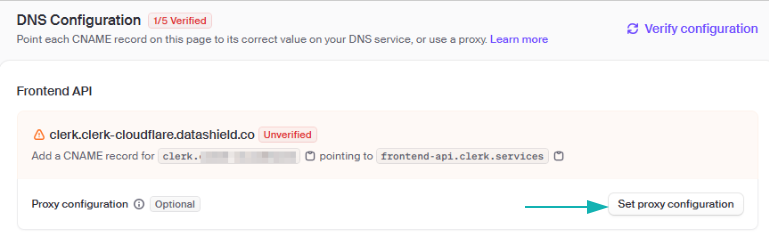
-
Define the URL -
https://<YOUR_CLOUDFLARE_WORKER_URL>/__clerk(same value as the Cloudflare worker variable environment)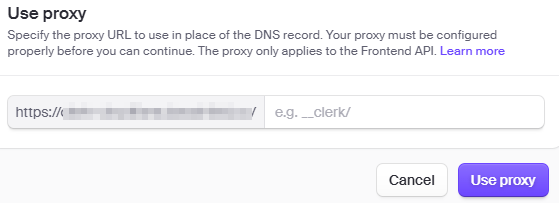
The domain can not be edited, and is defined for each application
- Click "Verify configuration"
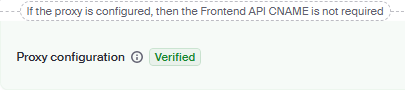
Configuration verification request can fail if it is blocked by DataDome. See Proxy configuration verification fails? in the FAQ
In the Clerk Frontend
This part highly depends on the frontend to edit - follow the documentation from Clerk
Proxying the Clerk Frontend API
As an example, here is the code to add in the Clerk loading configuration
await Clerk.load({ proxyUrl: "https://<YOUR_CLOUDFLARE_WORKER_URL>/__clerk"})FAQ
Proxy configuration verification fails?
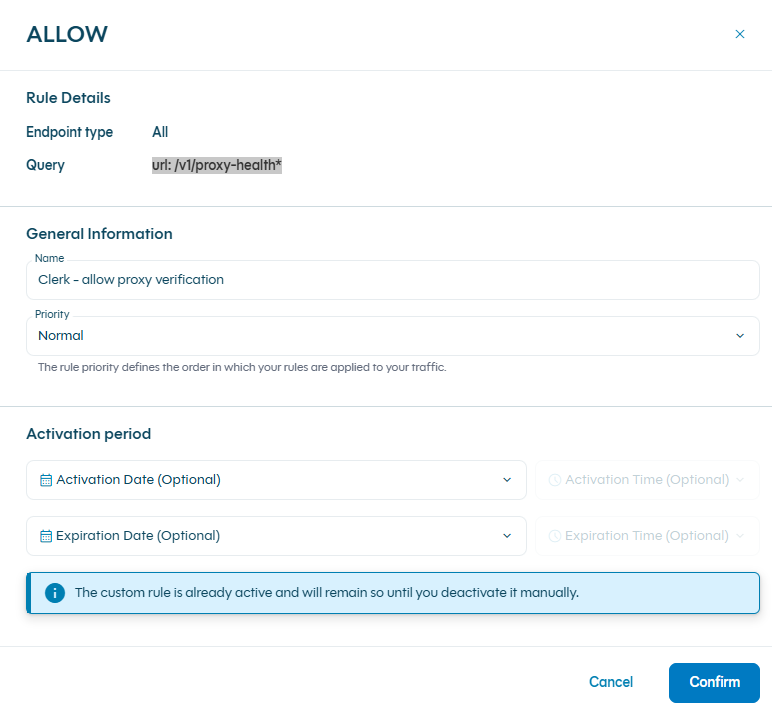
If the DataDome protection is enabled, the verification request made by a server from Clerk will be blocked, preventing Clerk to complete the proxy verification.
Make sure to create a Custom rule in the DataDome dashboard to allow requests with this query:
url: /v1/proxy-health*
Can I use another path than __clerk
__clerkAbsolutely, this is provided as an example, also in the Clerk documentation.
The only constraint is to use the same path value in all configurations:
- Cloudflare worker
- Clerk Dashboard
- Clerk Frontend
Updated 8 months ago