

Manage
The Manage page has two parts:
- Protection, to turn Account Protect on or off,
- List management, to always allow or always deny specific accounts, email domains and IP addresses.
Open it from the left menu: Account Protect > Manage.
Protection status

The Protection card shows whether Account Protect is protecting your traffic.
- Activated: DataDome evaluates your registration and login events and returns a recommended action.
- Deactivated: Account Protect switches to learning mode. DataDome still collects your events, but the Fraud SDK returns Allow for every event. The dashboard keeps showing the action DataDome would have recommended with protection activated.
⚠️ While protection is deactivated, no event is denied, including fraudulent ones. Deny lists stop applying too. Only deactivate during learning periods or testing, and turn protection back on as soon as you're done.
Deactivate protection
-
Click Deactivate protection.
-
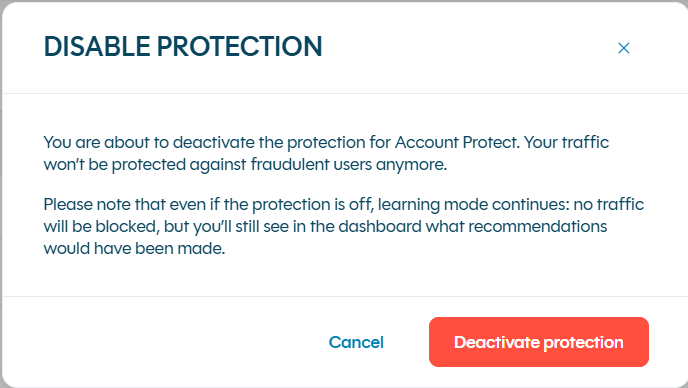
The Disable protection dialog opens. Click Deactivate protection to confirm, or Cancel to keep protection on.
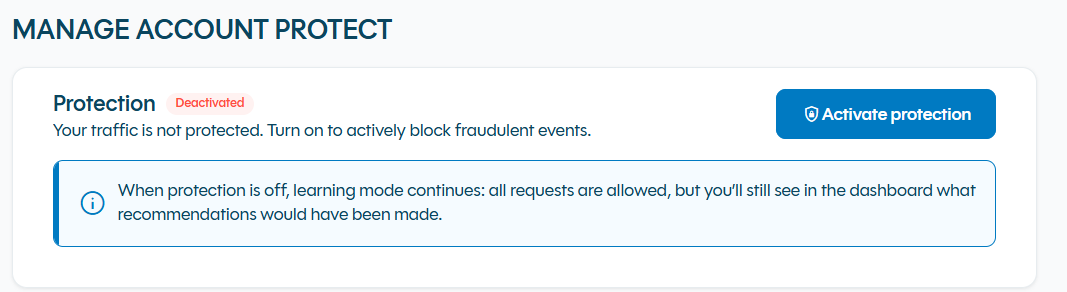
While protection is off, the card shows a Deactivated badge and a reminder that learning mode continues.
Activate protection
-
Click Activate protection.
-
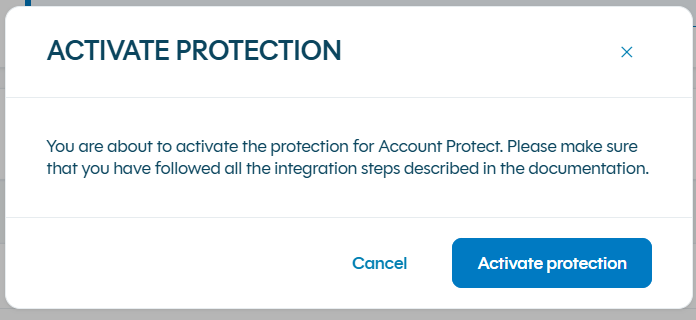
The Activate protection dialog opens. Make sure you have completed all the integration steps, then click Activate protection to confirm, or Cancel.
List management
Account Protect comes with six lists. Each one forces the action to allow or deny for every event that matches an item in the list, whatever DataDome's models recommend.
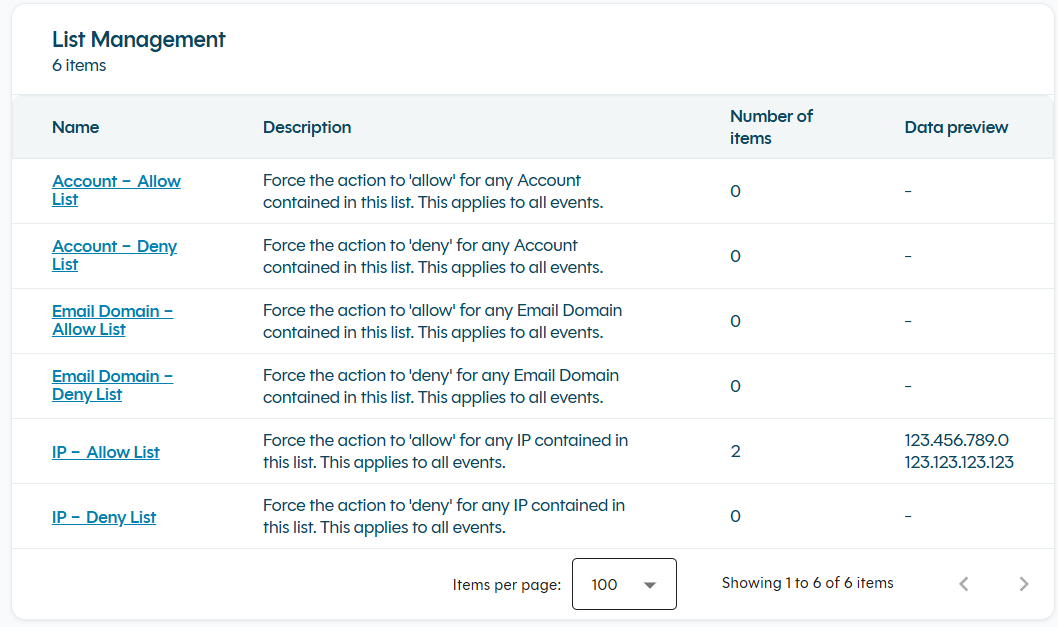
ℹ️ Need a list that isn't here? Open a request with the DataDome support team to create a custom list.
Default lists
| List | Item type | Forced action | Use it to |
|---|---|---|---|
| Account - Allow List | Account | Allow | Never block quality assurance, test or partner accounts |
| Account - Deny List | Account | Deny | Block test accounts or accounts you have confirmed as fraudulent |
| Email Domain - Allow List | Email domain | Allow | Trust your own or a partner's domain |
| Email Domain - Deny List | Email domain | Deny | Block known fraudulent email providers |
| IP - Allow List | IP address | Allow | Trust your office, VPN or monitoring IPs |
| IP - Deny List | IP address | Deny | Block an IP that keeps attacking you |
Limits and rules
- Lists apply to all events.
- If an event matches both an allow list and a deny list, allow wins.
- Any text is accepted as an item value; the format is not checked.
- Items are matched exactly: no wildcards, IP ranges or partial matches.
- A list holds up to 100,000 items.
- An item can appear only once in a list.
- Lists only take effect while protection is activated.
Always allow or deny an account, email domain or IP
-
In List management, click the name of the list. The List details page opens.
-
In the Item value field, enter the account, email domain or IP address.
-
Click Add item. The item appears under List items, and the counter updates.
New items apply to all incoming events from then on.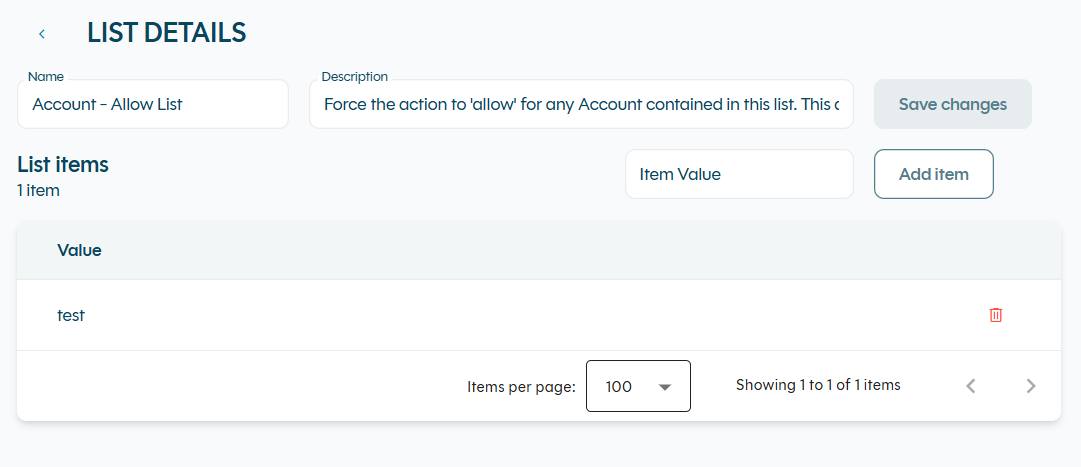
Stop allowing or denying an account, email domain or IP
- Open the list from List management.
- Under List items, click the Delete icon (trash can) on the item's row.
The item is removed and stops affecting events.
Rename a list or edit its description
- Open the list from List management.
- Change the Name or Description field.
- Click Save changes.
Renaming a list does not change its behavior: an allow list keeps forcing allow, a deny list keeps forcing deny.
Frequently asked questions
How can I check that a list works?
To check whether a list is working, search for the account, email domain or IP in Explore your Account data and open its latest event.
An account is in the allow list, but its events are still denied. Why?
Items are matched exactly. Check that the value in the list is identical to the one your application sends to DataDome.
Can I add an IP range or a wildcard?
No. Add each IP address or domain as its own item, up to 100,000 items per list.
What happens if an item is in both an allow list and a deny list?
Allow wins.
Do lists apply when protection is deactivated?
No. In learning mode every event gets Allow, so deny lists have no effect.
Can I create my own list?
Yes, open a request with the DataDome support team.
Updated about 4 hours ago